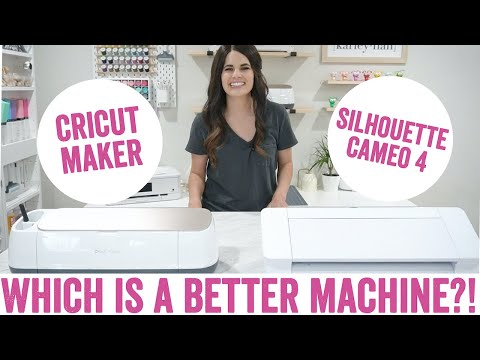
This bundle features the Silhouette Cameo 4 and Cricut Maker cutting machines, along with essential accessories and mats. It is designed for crafters and hobbyists interested in comparing these two popular desktop cutting solutions. The products collectively assist in various DIY projects, from vinyl decals to fabric crafts.
Curated by The Shelf Curator · Updated June 2026
Built for high-volume hobbyists and small-scale makers who need high-pressure cutting for dense materials like leather or wood. Not for those seeking a simple plug-and-play sticker experience—this shop focuses on the heavy-duty segment of the desktop market.
Curator's pick: Maker Desktop Cutting Machine
The Maker is the choice for versatility because of its expansive adaptive tool system and the 4,000 grams of downward force it applies to materials. It maintains better precision across a wider range of specialty blades than the Cameo 4, making it more capable for non-paper projects.
⚠ Worth knowing: Both machines rely heavily on proprietary software for design execution, meaning functionality is tied to a stable internet connection and manufacturer server uptime. If local, offline file control is the priority, these consumer-grade ecosystems will eventually feel restrictive.
Commercial Grade Vinyl Plotters for Sign MakingPrecision Heat Presses for Garment CustomizationBulk Adhesive Vinyl and Transfer Tape Supplies
This shop is built around the fundamental decision for any serious crafter: choosing between the Silhouette Cameo 4 and the Cricut Maker. It provides a direct comparison of these two leading desktop cutting machines, along with essential accessories to get started with either platform.
This guide is for crafters and hobbyists who are either looking to purchase their first electronic cutting machine or considering an upgrade. It caters to those who need to understand the nuances between the Cameo 4's precision and the Maker's versatility for a wide range of DIY projects.
To approach your budget, consider starting with either the Cameo 4 or Maker and a complementary mat. A full build, including both machines and key accessories, will range from $750 to $828.
Full build
$750–$828
Starter
$309–$418
Single machine + mat
Best forDIY EnthusiastsFabric CraftersVinyl ProjectsPaper ArtistsCustom ApparelHome Decor
The Cameo 4 Desktop Cutting Machine is an electronic craft cutter designed for DIY enthusiasts. It cuts various materials like vinyl, cardstock, and fabric using a blade and features high cutting force. This machine is suitable for users who need precision cutting for custom decals, apparel, and paper crafts.
Desktop electronic cutting machine
3mm material clearance
Built-in roll feeder and crosscutter
Supports 2 tool holders
Wireless Bluetooth connectivity
In this shop: The Cameo 4 machine embodies the Silhouette aspect of the shop's cutting machine theme, representing a robust option for detailed craft work.
The Maker Desktop Cutting Machine is a versatile electronic cutter tailored for a wide range of crafting projects. It features adaptable tools like a Rotary Blade and Knife Blade, enabling it to cut materials from delicate fabrics to thick balsa wood. This machine is ideal for crafters seeking a do-it-all solution for sewing, quilting, and general DIY.
Cuts hundreds of materials
Adaptive Tool System
Rotary Blade for fabric
Knife Blade for thicker materials
Design Space software
In this shop: The Maker machine aligns with the Cricut facet of the shop's theme, offering advanced versatility for diverse crafting applications.
The AutoBlade for Cameo 4 is an automated blade that adjusts its depth settings based on material selection in the software. This accessory simplifies the cutting process by eliminating manual blade adjustments for Silhouette Cameo 4 users. It is an essential component for achieving consistent and precise cuts across various materials.
Automatic blade depth adjustment
For Silhouette Cameo 4
Single-tap setup
Cuts vinyl, cardstock, fabric
Durable cutting edge
In this shop: This AutoBlade accessory supports the Silhouette Cameo 4 machine featured in the shop's cutting machine comparison vibe.
The Rotary Blade with Drive Housing is a specialized tool for the Cricut Maker, designed for cutting soft or delicate materials. It allows for precision cutting of fabrics without a backing material, as well as crepe paper and felt. This accessory enhances the Maker's capability for sewing, quilting, and intricate fabric projects.
For Cricut Maker machines
Cuts fabric, crepe paper, felt
Glide and roll action
Removes need for fabric stabilizer
Precision cutting
In this shop: This Rotary Blade with Drive Housing is a key accessory that highlights the specific strengths of the Cricut Maker within the shop's cutting machine theme.
The StandardGrip Machine Mat 12x12 is an adhesive cutting mat used to secure various materials during cutting with Cricut machines. Its standard adhesive provides a strong hold for medium-weight materials like cardstock, iron-on, and vinyl. This mat is crucial for ensuring stable and accurate cuts on the Cricut Maker.
12x12 inch cutting mat
Standard adhesive strength
For Cricut Maker machines
Holds cardstock, iron-on, vinyl
Durable, reusable surface
In this shop: This StandardGrip Mat is an essential component for effective use of the Cricut Maker, fitting the shop's focus on cutting machine accessories.
The LightHold Cutting Mat 12x12 is an adhesive mat designed for Silhouette cutting machines, offering a gentler adhesive. It is optimized for securing delicate materials like copier paper, vellum, and other lightweight media without tearing. This mat is ideal for crafters working with fine papers or thin vinyl, ensuring clean removal after cutting.
12x12 inch cutting mat
Light adhesive strength
For Silhouette machines
Holds paper, vellum, thin vinyl
Gentle material release
In this shop: This LightHold Cutting Mat provides a specific utility for Silhouette machines, complementing the shop's dual-brand cutting machine theme.
This bundle allows a direct hands-on comparison between the two leading cutting machine platforms, enabling an informed decision about which ecosystem best suits your crafting needs.
You gain access to a wider range of cutting capabilities, from the Cameo 4's high-force precision for thick materials to the Maker's specialty tools for delicate fabrics and balsa wood.
The included essential accessories for both machines mean you are immediately equipped to begin diverse projects, testing each machine's strengths with appropriate tools.
What to know
Investing in both machines simultaneously might be an overkill for many crafters, potentially leading to underutilization of one machine once a preference is established.
The initial cost of acquiring both cutting machines and their specialized accessories represents a significant investment, which may not be justifiable for casual users.
How to use this together
1
Unpack and Setup Your Chosen Machine
Begin by unboxing either the Cameo 4 or the Maker. Follow the manufacturer's instructions for plugging in the machine and connecting it to your computer. Install the corresponding software (Silhouette Studio for Cameo 4, Cricut Design Space for Maker). This initial setup ensures your machine is recognized and ready for its first project.
2
Select Appropriate Mat and Blade
For delicate materials like paper, choose the LightHold Cutting Mat 12x12 used with the Cameo 4's AutoBlade. For sturdier items such as vinyl or cardstock with the Maker, use the StandardGrip Machine Mat 12x12. If working with fabric on the Maker, ensure the Rotary Blade with Drive Housing is installed. Using the correct mat and blade prevents material damage and ensures clean cuts.
3
Calibrate and Test Cut
Before committing to a full project, always perform a test cut with a scrap piece of your chosen material. Adjust blade depth, force, and speed settings as needed within the software. This step is crucial for achieving optimal results and familiarizes you with the machine's behavior with different materials.
4
Project Creation and Execution
Design your project within the respective software. Place your material securely on the chosen cutting mat. Load the mat into the machine. Double-check all settings and then initiate the cut. Carefully remove the material from the mat once the cut is complete, using appropriate tools like a spatula or weeding tool if necessary.